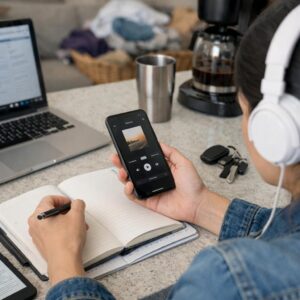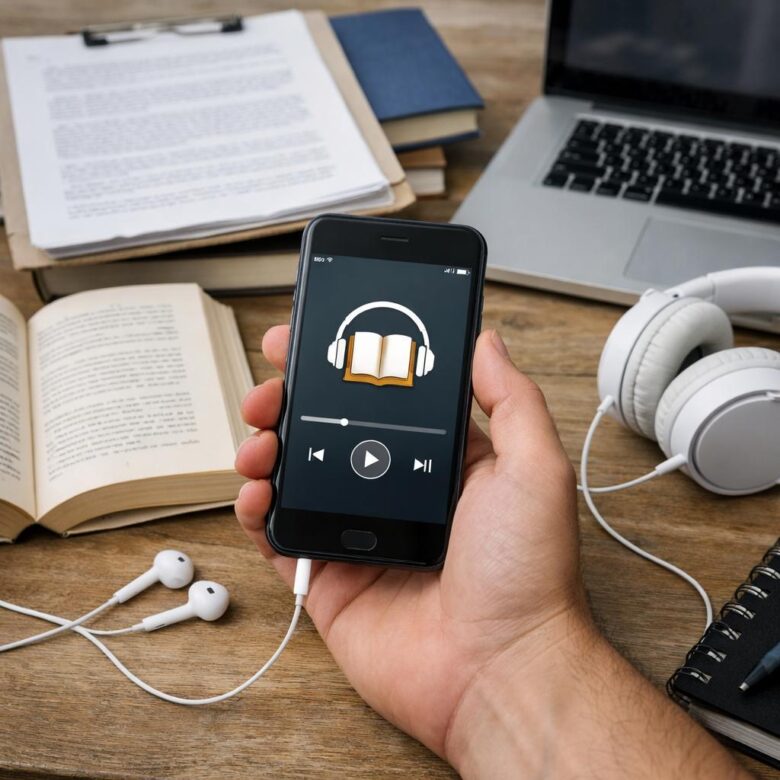
What if every book on your phone could read itself to you?
Whether it’s a dense PDF, an ebook, a work document, or a saved article, your phone can turn text into audio in minutes-no studio, narrator, or extra device required.
This guide shows you the fastest ways to listen to almost any book or PDF on iPhone or Android, using built-in accessibility tools, reader apps, and text-to-speech features.
By the end, you’ll know how to turn reading time into listening time during commutes, workouts, chores, or whenever your eyes need a break.
What It Means to Turn a Book or PDF Into Audio on Your Phone
Turning a book or PDF into audio on your phone means using text-to-speech technology to read written content aloud through your device. Instead of buying a separate audiobook, you can listen to a PDF report, eBook, study guide, user manual, or saved article while commuting, walking, cooking, or resting your eyes.
In practice, your phone scans or imports the text, then a speech engine converts it into spoken audio. Apps like Speechify, NaturalReader, and built-in tools such as iPhone Spoken Content or Android Select to Speak can handle many common formats, including PDF, EPUB, web pages, and documents stored in cloud services like Google Drive or Dropbox.
The experience is not exactly the same as a professionally narrated audiobook. A human narrator adds emotion and pacing, while a text-to-speech app focuses on convenience, speed control, voice options, and accessibility. For example, a student can upload a 40-page lecture PDF and listen to it at 1.5x speed on the bus, then slow it down later when reviewing difficult sections.
- Accessibility: helpful for dyslexia, eye strain, low vision, or multitasking.
- Productivity: turns reading time into listening time during daily routines.
- Cost control: avoids purchasing every title as a paid audiobook.
The key is choosing the right tool for your content. Clean digital text usually works well, while scanned PDFs may need OCR, which is optical character recognition, before the app can read them accurately.
How to Convert PDFs, Ebooks, and Scanned Pages Into Listen-Ready Audio
The cleanest workflow is to turn your file into selectable text first, then send it to a text to speech app that can save or play audio. For normal PDFs, apps like Speechify, NaturalReader, and Voice Dream Reader can usually read the document directly from your phone, Google Drive, Dropbox, or iCloud.
Scanned pages need one extra step: OCR software. If the PDF is just images of pages, use Adobe Acrobat, Google Drive OCR, Microsoft Lens, or Apple Live Text to recognize the words before importing it into your audio reader. This matters because poor OCR creates strange pauses, broken sentences, and misread words.
- For clean PDFs: open the file in a text to speech app and choose a voice, speed, and playback mode.
- For scanned books: run OCR first, then export as a searchable PDF or plain text file.
- For ebooks: use EPUB when possible, because it usually converts to audio more smoothly than fixed-layout PDFs.
For example, if you scan a 30-page training manual with Microsoft Lens, save it as a PDF, run OCR, then upload it to Speechify, you can listen during a commute instead of zooming into tiny text. In practice, I’ve found that removing headers, page numbers, and footnotes before conversion makes the audio sound much less distracting.
Be aware that Kindle books and some paid ebooks may have DRM restrictions, so not every file can be exported or converted legally. If audio quality matters, compare free plans with premium text to speech services, since paid voices often sound more natural and are easier to listen to for long study sessions.
Best Settings and Mistakes to Avoid for Clear, Natural-Sounding Playback
For the most natural playback, start with a high-quality text-to-speech voice rather than the default robotic one. On iPhone, try enhanced voices in Accessibility settings; on Android, compare Google Speech Services with premium options in apps like Speechify, NaturalReader, or Voice Dream Reader. A slightly slower speed, around 0.9x to 1.1x, usually works best for textbooks, legal PDFs, finance books, and anything with dense information.
Clean source files make a bigger difference than most people expect. If a scanned PDF has crooked pages, headers, footers, or handwritten notes, run it through OCR software first using tools like Adobe Acrobat or Microsoft Lens before converting it to audio. In real use, a clean EPUB version of a business book often sounds far better than a poorly scanned PDF, even when using the same text-to-speech app.
- Avoid max speed: It saves time but reduces retention, especially for study material or professional documents.
- Check pronunciation settings: Add custom pronunciations for names, medical terms, technical words, or brand names.
- Use headphones wisely: Noise-canceling earbuds can make phone audio clearer during commuting, walking, or gym sessions.
One common mistake is converting the entire file without testing the first few pages. Play a sample first, adjust the voice, speed, and pauses, then export or save the audiobook file. This prevents wasting time on a bad conversion and helps you get better value from any paid text-to-speech subscription or audiobook app.
Summary of Recommendations
Turning books and PDFs into audio is less about replacing reading and more about making your existing library fit real life. The best choice depends on how you listen: use built-in phone tools for quick access, dedicated text-to-speech apps for better voices and controls, and audiobook-style conversion tools when you want a smoother, hands-free experience.
Practical takeaway: start with the simplest option on your phone, then upgrade only if you need higher-quality narration, offline playback, or better handling of long PDFs. The right setup is the one that helps you finish more of what you already wanted to read.
Dr. Silas Vance is a Doctor of Education (EdD) and a digital literacy researcher focused on the evolution of modern reading. He explores the synergy between cognitive retention and digital interfaces, providing expert insights into the apps and tools that transform how we consume and master information in the digital age.